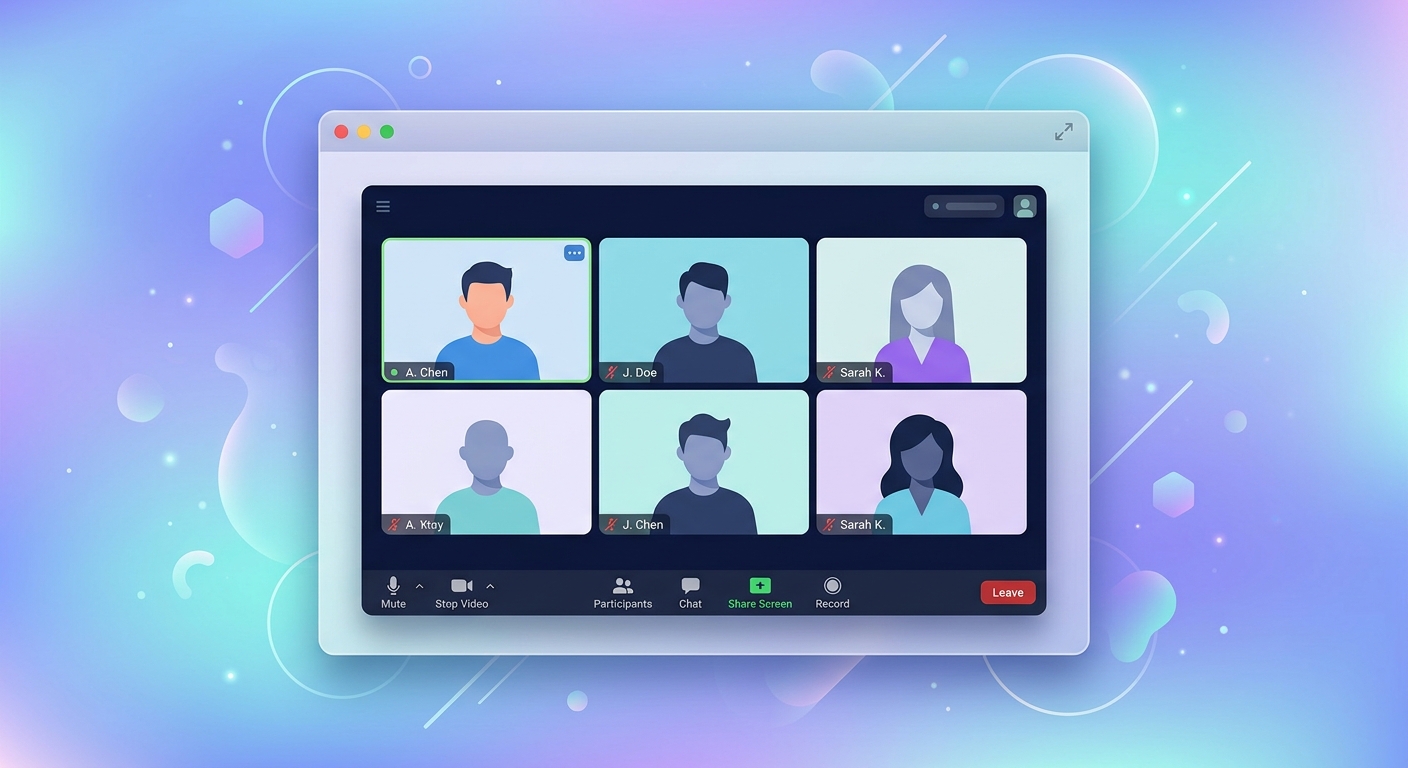
Screenshot of Zoom: Capture Meeting Content for QA and Documentation
Why screenshot Zoom meetings?
Zoom has become a standard communication tool for remote teams, client calls, and recorded meetings. Capturing screenshots of Zoom sessions is useful for documentation, follow-up emails, compliance records, and quality assurance. FrameSnap lets you capture Zoom meeting screenshots as part of an automated workflow, without manual screen recording.
Use cases
- Meeting documentation: Capture participant lists, shared screens, and chat highlights for meeting notes and follow-up workflows.
- QA for remote interviews: Record video interview sessions with screenshots attached to candidate records for hiring workflows.
- Compliance records: Capture screenshots of financial advisor meetings, therapy sessions, or legal consultations for compliance documentation.
- Support ticket context: Pull screenshots from customer support calls to attach to support tickets and CRM records.
How to capture Zoom screenshots with FrameSnap
FrameSnap works with any URL, including Zoom meeting links. Pass the meeting URL and your preferred viewport settings to receive a clean screenshot.
Basic API request
curl -X POST https://api.framesnap.dev/v1/screenshot \
  -H "Authorization: Bearer YOUR_API_KEY" \
  -d {"url": "https://zoom.us/j/123456789", "format": "png", "viewport": {"width": 1920, "height": 1080}}
Python example
import requests

response = requests.post(
    "https://api.framesnap.dev/v1/screenshot",
    headers={"Authorization": "Bearer YOUR_API_KEY"},
    json={
        "url": "https://zoom.us/j/123456789",
        "format": "png",
        "viewport": {"width": 1920, "height": 1080},
        "full_page": False
    }
)

with open("zoom-meeting.png", "wb") as f:
    f.write(response.content)
Handling Zoom meeting URLs
Personal Zoom meeting links (zoom.us/j/YOUR_ID) and recurring meeting links both work. For meetings that require authentication, you can pass meeting passwords as query parameters when allowed, or use FrameSnap with a logged-in browser session.
Viewport and format options
FrameSnap supports multiple output formats (PNG, JPEG, WebP, PDF) and full-page or viewport-only capture. For Zoom, a standard 1920x1080 viewport captures most of the interface cleanly. Use full_page=True if you need to capture the entire chat sidebar and participant list visible on screen.
Automating Zoom screenshot workflows
You can trigger FrameSnap screenshots on a schedule using cron jobs, or hook it into your existing tools with a simple API call. Common integrations include:
- Zapier or Make.com for automated screenshot capture after calendar events
- Python scripts triggered by webhook after video calls end
- QA pipelines that capture screenshots during automated browser testing
Next steps
Sign up for a free FrameSnap API key and start capturing Zoom screenshots in minutes. The free tier includes enough requests to evaluate the service for your workflow. Read the API documentation for full parameter reference and integration guides.
Capture Screenshots with FrameSnap
One API call. PNG, JPEG, or PDF. Free tier included.