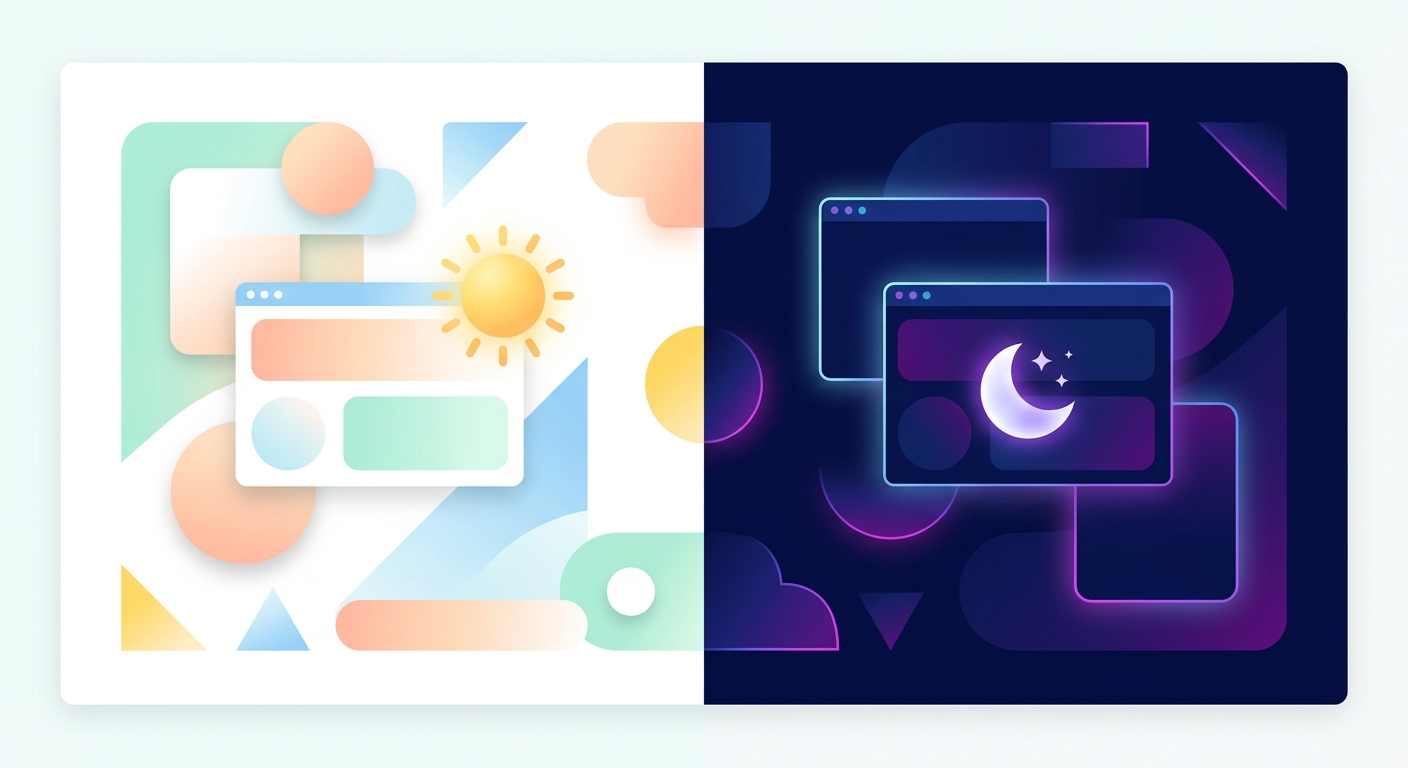
How to Capture a Website in Dark Mode
Why dark mode screenshots matter
Dark mode has gone from niche preference to mainstream default. Apple, Google, and most major platforms offer system-wide dark themes, and users expect apps and websites to respect their choice. If you're building documentation, generating design previews, or capturing screenshots for app store listings, you need to capture what your site actually looks like in dark mode.
Manually toggling dark mode, adjusting browser settings, and taking screenshots one by one doesn't scale. FrameSnap lets you capture dark mode screenshots programmatically with a single API parameter.
How it works
FrameSnap renders pages in a real Chromium browser. When you pass the color_scheme=dark parameter, FrameSnap sets the browser's prefers-color-scheme media feature to dark before capturing. Any website or web app that uses CSS media queries to detect dark mode will render its dark theme automatically.
This works the same way a user's operating system tells their browser to use dark mode. No CSS overrides, no hacks. Your screenshot reflects exactly what a real dark-mode user would see.
Getting started
Here's a quick example using the FrameSnap API to capture a dark mode screenshot:
curl "https://api.framesnap.dev/v1/screenshot?url=https://example.com&color_scheme=dark&format=png" \
  -H "Authorization: Bearer YOUR_API_KEY" \
  -o dark_screenshot.png
That's it. One parameter, and you get a pixel-perfect dark mode capture. You can combine color_scheme=dark with any other FrameSnap parameter: custom viewports, full-page captures, delays, selectors, and more.
Use cases
- App store screenshots: Generate both light and dark variants of your marketing screenshots automatically. Submit both to Apple's App Store and Google Play for a polished listing.
- Design system documentation: Capture your component library in both themes to verify contrast, spacing, and readability across modes.
- Accessibility testing: Dark mode isn't just aesthetic. Some users rely on it to reduce eye strain or improve readability. Automated dark mode captures help you catch contrast issues before they reach production.
- Marketing and social media: Dark-themed screenshots often look more striking on social platforms. Capture both variants and pick the one that fits your campaign.
- Competitive analysis: Curious how competitor sites look in dark mode? Capture and compare without manually toggling settings on each one.
Tips for better dark mode captures
- Pair with custom viewports: Use
viewport_widthandviewport_heightto capture at specific device sizes. Mobile dark mode screenshots are great for app store assets. - Use full-page mode: Add
full_page=trueto capture the entire scrollable page in dark mode, not just the viewport. - Add a delay for transitions: Some sites animate the theme switch. Use the
delayparameter to wait for CSS transitions to finish before capturing. - Compare light vs dark: Run two API calls (one with
color_scheme=dark, one without) to generate side-by-side comparisons for design reviews.
Try it now
FrameSnap makes dark mode screenshots as simple as adding one parameter to your API call. Sign up for a free API key and start capturing dark mode screenshots in seconds.
Capture Screenshots with FrameSnap
One API call. PNG, JPEG, or PDF. Free tier included.